How to Validate e-Aadhaar Signature in Adobe Reader (Full Guide)
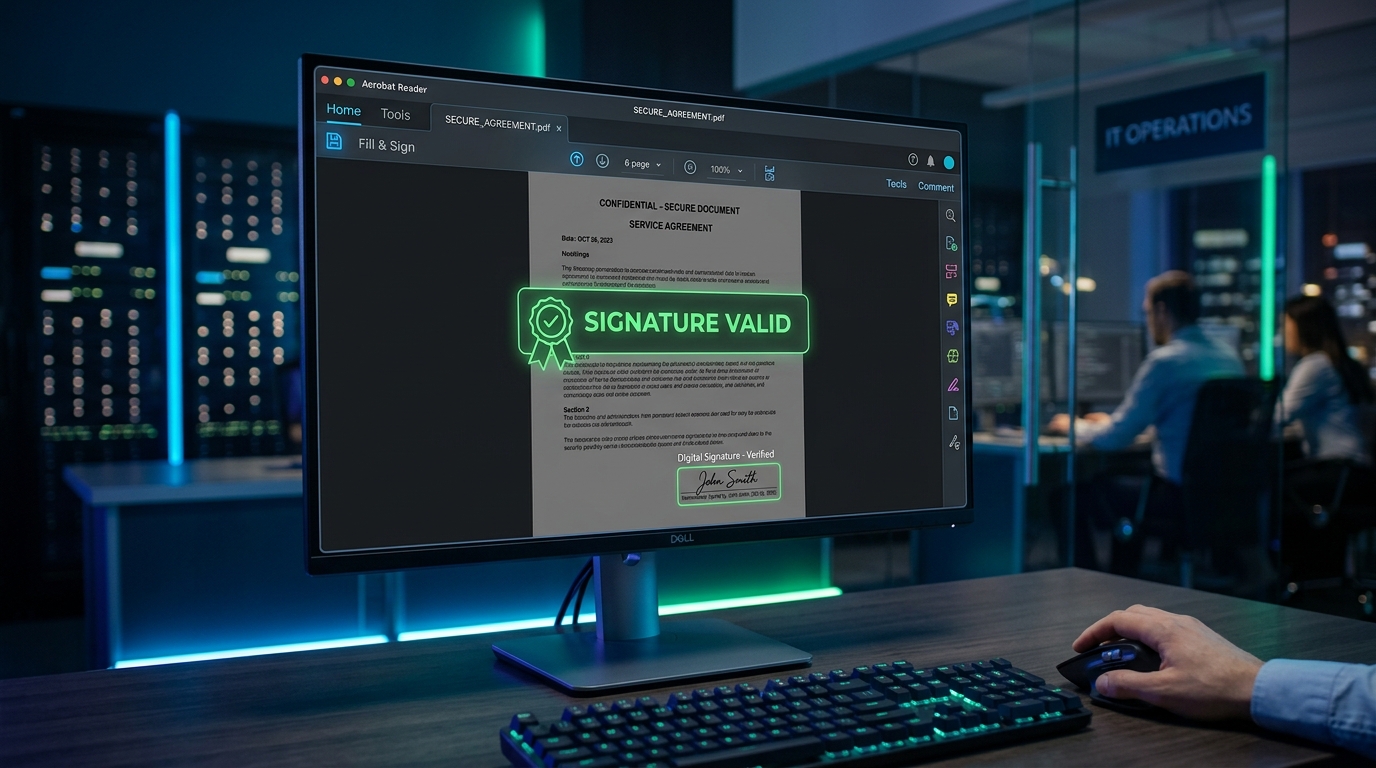
Validating your aadhar download manually in Adobe Reader can be a highly tedious process involving multiple hidden menus, trust settings, and importing certificates. While we always recommend the automated route, understanding the manual process is beneficial for power users.
The Exhaustive Manual Validation Steps
If you prefer to configure your own software, follow these steps meticulously:
1. First, complete your aadhar card download and open the encrypted PDF in a desktop version of Adobe Acrobat Reader (mobile versions generally do not support signature validation).
2. Enter your 8-character password to unlock the document.
3. Click directly on the 'Validity Unknown' signature block (the yellow question mark).
4. In the Signature Validation Status window that pops up, click on 'Signature Properties'.
5. Click on the 'Show Signer's Certificate' button.
6. Navigate to the 'Trust' tab in the top menu.
7. Click on the 'Add to Trusted Certificates' button. You will receive a scary-looking security warning from Adobe; click 'OK'.
8. In the Import Contact Settings window, check the box that says 'Use this certificate as a trusted root'.
9. Click OK, close all the dialogue boxes, and then click 'Validate Signature' in the original properties window. Your signature should now turn green.
The Infinitely Better Way
Skip the manual hassle entirely! Generate a download signature verified aadhar card using our automated signature verified tool. We inject the LTV metadata so Adobe trusts it by default without any configuration, working flawlessly on both desktop and mobile devices instantly.
The Legal Side of Things (It Actually Matters!)
So, here's the deal with the Information Technology Act of 2000. It essentially says that an electronic document digitally signed by a licensed authority in India is legally exactly the same as a piece of paper you signed with a pen. The UIDAI uses this exact system when issuing your e-Aadhaar. This means when you do an aadhar download, you aren't just downloading a random PDF; you're downloading a legally binding document that banks, telecom operators, and the government must accept.
But there's a big catch. This legal validity only holds up if the digital signature can be instantly verified. If you open it and it says 'Validity Unknown' or 'Signature Not Verified', the person checking your document has every right to reject it because they can't mathematically prove it hasn't been altered. This is exactly why getting a download signature verified aadhar card is so incredibly important for your peace of mind.
What Does the Aadhaar Digital Signature Green Tick Mean?
How Does the Cryptography Actually Work?
To really understand why you need a signature verified document, it helps to know a tiny bit about how the tech works under the hood. When the UIDAI servers create your e-Aadhaar, they generate a unique 'cryptographic hash'. Think of this hash as a digital fingerprint. If someone tries to change even a single pixel in the document, the fingerprint changes completely. The UIDAI then locks this fingerprint using their super-secure Private Key, creating the Digital Signature.
When you open the PDF, your Adobe Acrobat tries to unlock that fingerprint using the UIDAI's Public Key. If the math matches up, the software knows for a fact the document is real. But here's the problem: Adobe Acrobat needs to know it can actually trust that Public Key in the first place, which leads us straight to the frustrating root certificate issue.
Why Adobe Acrobat Keeps Showing Errors
It's super frustrating when you do a successful aadhar card download, open the file, and are greeted by a massive yellow question mark instead of a nice green tick. Why does this happen? Well, Adobe Acrobat is global software, and it comes pre-loaded with a list of trusted certificates (the AATL).
Unfortunately, the root certificate used by the Indian Government (CCA India) isn't always enabled by default in Adobe. So when the software checks the signature, it does the math correctly, but it essentially says, 'I don't know who this CCA India guy is.' As a result, you get the 'Validity Unknown' error. The absolute best way to fix this without messing around deep in your computer settings is to embed Long Term Validation (LTV) directly into the file. This gives you a universally accepted verfiied aadhar download that works everywhere.
e-Aadhaar Password Format & PDF Unlock Guide (2026)
The Magic of Long-Term Validation (LTV)
Here's something a lot of people don't know: digital certificates eventually expire! A normal digital signature might be perfectly valid today, but what happens when the UIDAI's certificate expires in a couple of years? If someone tries to verify it then, it'll show up as invalid. That's a nightmare for an identity document you might need for decades.
That's why Long-Term Validation (LTV) is so awesome. When you run your aadhar download through our verification tool, we don't just check the signature. We reach out to the official government servers in real-time to prove the certificate is valid right now, and then we permanently embed that proof inside your PDF. Because of this, even if you open the PDF 20 years from now on a computer with no internet, Adobe Acrobat will see the embedded LTV data and give you a green tick immediately. It makes your download signature verified aadhar card eternally valid.
Frequently Asked Questions
Is it really safe to verify my e-Aadhaar online?
Yes, absolutely! We take your security extremely seriously. Our validation tool runs entirely in-memory. This means your aadhar download is processed in RAM just to do the cryptographic math, and then it is instantly deleted the second you download the verified version. We never save your files to a hard drive.
Can I just print my verified Aadhaar card?
You sure can. Once you have a signature verified document showing the green tick, you can print it out. Most local authorities will accept the physical printout with the visual green tick without any issues, even though the real security is inside the digital file.
Help! I forgot my PDF password!
Don't worry, every aadhar card download from the UIDAI is encrypted the exact same way. The password is always 8 characters long: it's the first four letters of your name (in ALL CAPS) followed by your 4-digit birth year (like NAME1990).